

Greater Gattsby
♛ All Class ♛


- Oct 6, 2011
- 8,881
- 11,491
- AFL Club
- North Melbourne
- Other Teams
- Melbourne Victory | West Ham United
Why do I need a clipping mask?
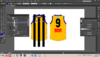
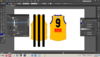
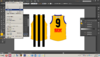
1. Notice how I've got my layers set out - this is important. Always name your layers so that you know what is going on at all times, this is essential because it can get confusing. So you've opened your template and I've made some basic stripes to fit on the BLK template for this Sandringham Zebras VFL jumper. I want these stripes to be restricted to the boundary of the template, how do I do that? Very good question - this is how.
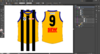
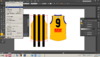
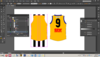
2. Go into the layers and select the base of the jumper. Click to the right of the circle next to the layer to select the 'Base' path.
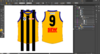
3. Copy this path (CTRL + C), click into the same group with all of the stripes and paste it (CTRL + F).
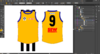
4. The selected copy of the base MUST be on top of the stripes in the group. With this in mind, select the copy of the base, hold shift and select the other stripes that will be in the same mask.
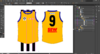
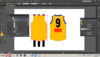
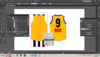
5. Now create the clipping mask. Go to Object > Clipping Mask > Make or use the shortcut (CTRL + 7).
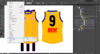
6. Congrats you've just made a clipping mask!
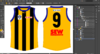
If you've got a stroke on your template, find out how to clean it up a bit more:
You're now done! I hope this was simple to follow - If there are any questions or issues, let me know and I'll sort them out ASAP!!
- To restrict paths within the template
- To make a design much cleaner and less work for the designer - You don't have to replicate edges of the template, go way over them, it doesn't matter
- Handy for sashes, stripes, hoops, larger logos and designs
1. Notice how I've got my layers set out - this is important. Always name your layers so that you know what is going on at all times, this is essential because it can get confusing. So you've opened your template and I've made some basic stripes to fit on the BLK template for this Sandringham Zebras VFL jumper. I want these stripes to be restricted to the boundary of the template, how do I do that? Very good question - this is how.
2. Go into the layers and select the base of the jumper. Click to the right of the circle next to the layer to select the 'Base' path.
3. Copy this path (CTRL + C), click into the same group with all of the stripes and paste it (CTRL + F).
4. The selected copy of the base MUST be on top of the stripes in the group. With this in mind, select the copy of the base, hold shift and select the other stripes that will be in the same mask.
5. Now create the clipping mask. Go to Object > Clipping Mask > Make or use the shortcut (CTRL + 7).
6. Congrats you've just made a clipping mask!
If you've got a stroke on your template, find out how to clean it up a bit more:
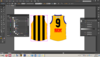
It's time to do a bit of tidying up to add a bit of professionalism. You'll notice the design slightly overlaps the template due to there being no stroke on the clipping path of the jumper outline.

To fix this add, select the clipping path and add a stroke of the same colour and width as the base of the jumper.

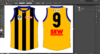
And it's done!
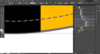
To fix this add, select the clipping path and add a stroke of the same colour and width as the base of the jumper.
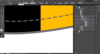
And it's done!
Last edited: